
ENTEK CorporateFor buyers
- RFQs with approvers, multi-round bids, PO on award
- Marketplace in 12 categories and 320+ Saudi suppliers
- Live delivery map, proof of delivery, VAT invoices

Which one is for me?
You buy for branches, sites or projects.
CorporateYou sell industrial products to companies.
SupplierYou run trucks, tanks, locks or generators.
IoTYou want solar on a site or rooftop.
EnergyIoT & OT
ENTEK IoT connects the trackers, locks and sensors on your containers, tanks, vehicles and site machines over the cellular network. Readings arrive within seconds, your rules are checked every 30 seconds, and alerts reach the right people by email, SMS or WhatsApp in Arabic or English. You then act from the dashboard, the API or the built-in assistant.
ENTEK IoT, field operations
Trackers, locks and sensors report into the same platform that runs your purchasing and suppliers. A reading can raise an alert or draft an RFQ, and people approve what matters.
Geofenced trips, photo proof at each stop, remote unlock with history.
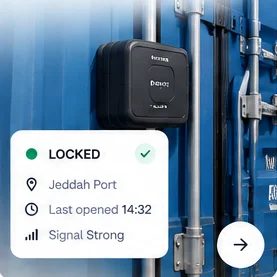 Example
Level, refills and unexplained drops.
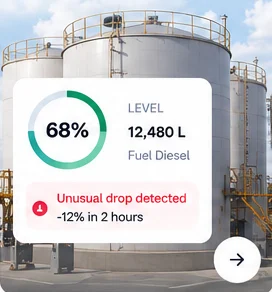 Example
Status, load weight and driver fuel receipts.
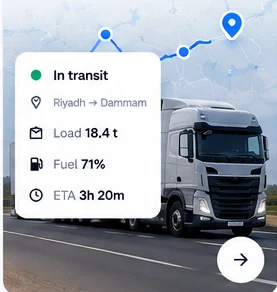 Example
Assets on a live map.
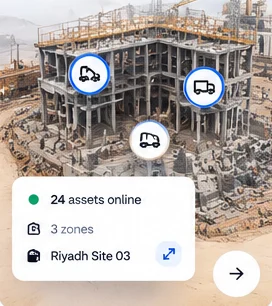 Example
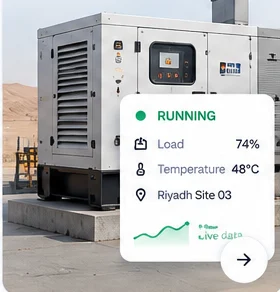
Run status and location.
 Example
A reading becomes an action
Rules are checked every 30 seconds. Alerts by email, SMS or WhatsApp, in Arabic or English. Cloud, on premises or hybrid.
Fuel level drops unexpectedly
-12%Anomaly detected based on your rules
Rule matchedAlert created and RFQ drafted
High priorityManager approves via platform, email or WhatsApp
RFQ sent to suppliers automatically
ExecutedAdmins who set up hardware, and operations teams who keep devices online.
Every device joins one shared registry. You add it with three fields, and once it reports, its readings appear in the solution it belongs to. Its SIM card is managed from the same platform.
Go to Devices and select Add Device. The form asks for a device name, the IMEI and the device type. Your company is filled in for you. The IMEI must be 10 to 16 digits, and spaces or dashes are removed automatically.
The type list holds more than 1,500 tracker, lock and sensor models. The model you pick tells the platform how to read that device, so its raw values become named signals such as fuel level, speed, lock status and battery. The same rules and charts then work for every model.
Open the device and select the telemetry tab. You see the latest value of every signal, with the device time next to the server time. On a live truck these were about 2 seconds apart.
A master lock with its own SIM and GPS carries smaller lock units linked by Bluetooth. Open the sub-devices tab to see each unit with its own battery and last-seen time.
Open SIM Cards to see each SIM with its daily and monthly traffic, data balance, plan and last connection. Use Request SIM to order between 1 and 500 new SIMs, and Sync data to pull a fresh reading on demand.
Rule A device counts as online when it has reported in the last 60 minutes. The same rule is used across the platform.
Rule Devices are never removed by an automatic job. Deleting a device is always a manual action.
Limit today Devices connect over the cellular network only. LoRaWAN and platform-wide Modbus, DNP3 or OPC-UA are not supported.
Tip Only a smaller set of tracker and lock models has been tested end to end. Ask our team before you buy a model that is new to you.
Operations managers, dispatchers and control-room staff.
The home dashboard and the shared map show every asset from every solution in one place. Vehicle tracking and the Monitoring page give a closer, live view.
After you sign in, the home page shows four figures: total assets, online devices, active alerts and vehicles moving. Below them are a live map, recent alerts written as plain sentences, one panel per active solution, devices with problems and recent activity.
Open Map to see three layers at once: vehicles, assets and devices. Turn layers on or off, and use the side list to open any item. Colours show status: moving, stopped, offline or with an open alert.
In Vehicles, select Track next to a vehicle. A live map opens and refreshes every 5 seconds with speed, heading, signal and GPS position.
Monitoring shows system uptime, device health and network latency, a list of devices that are stale or slow, an alert trend and live activity. It updates within about 1.5 seconds of a real change.
Tip Every figure is calculated by the database. When data is not ready, you see a dash, not a false zero.
Rule Monitoring counts device health with a stricter 15-minute window. Other pages use the 60-minute online rule.
Logistics and dispatch teams who plan trips, supervisors who review photos, and drivers on the road.
Smart Lock puts an electronic lock on the container and follows it through a planned trip. Stops are confirmed by GPS, proof photos come from the live camera only, and every event is kept in the trip's audit log.
Open Smart Lock. You see how many locks are locked, unlocked, tampered or offline, the photo verification rate, active trips, a 24-hour unlock timeline and security alerts you can acknowledge. When several states are true, tampered wins, then unlocked, then locked, then offline.
Go to Trips & Locations and select Add location. Enter a name and address, choose the type (filling site or customer), and draw the zone on the map with at least three corner points. You can add the customer's contact person, email and mobile.
Select Add new trip. Pick the asset, assign a driver if needed, choose who gets SMS, WhatsApp or email updates, and add the stops in order. The same location can appear more than once. Turn on Allow driver to unlock on-site only if the driver may open the lock at stops. The trip number is created for you, and you can duplicate a past trip.
When GPS places the vehicle inside a stop's zone, the stop is marked arrived and the trip moves from planned to in progress. Nobody has to click. If unlocking is allowed, the driver can ask to unlock at that stop and then takes live camera photos. When the vehicle leaves the zone, the stop is marked departed. The last departure completes the trip.
Open the trip's Photo Verification tab. Each stop shows the photos required and submitted, those pending review, and missed or expired tasks. Open a photo to approve or reject it. Photo types include lock close-up, seal, door latch and asset ID tag.
The trip's audit log lists every event with a time: trip created, arrived, departed, photo verified and exited without sending a photo. Under Reports, choose Overview, Driver, Security & Compliance, Operational Performance, Device Health or Access Control, and export as PDF, Excel or CSV.
Rule Proof photos must come from the live camera. The driver cannot pick a photo from the gallery.
Rule A stop zone is at least 10 metres across. A location with no drawn zone uses a 120 metre circle around its point.
Tip Trip compliance is the share of planned stops that received at least one proof photo.
Rule Only planned trips can be deleted. Cancelling a trip keeps its stops, photos and unlock history.
Limit today The security score on the container page is not filled yet, so it shows a dash.
Admins and dispatchers who control locks, and drivers who are allowed to unlock at a stop.
An authorised user can send a command back to a device, for example to open a lock. Each lock reports the commands it supports, and every command is logged with who sent it.
Open the device commands from the trip detail or the lock. The list is not fixed: it shows only the commands this lock supports, such as rear lock, top lock and unlock main lock.
Opening the main lock asks for that lock's password. The command is written to the log before it is sent, and the log is then updated with the result, which you see on screen.
Open the Commands history. Each line shows the command, its status, the user who sent it and the date. Once written, the record of who sent a command and whether it was approved cannot be edited.
Rule A driver's unlock request is checked again by the database: the driver must be assigned to the trip, be at that stop now, and not have used the one unlock for that stop. Otherwise it is refused.
Rule After an unlock, the driver waits a short set time before the proof photo can be sent.
Limit today There is no guaranteed unlock time. The request goes through a real server check first.
Fuel and depot managers, fleet managers and site or project managers.
Each solution has its own screens on top of the same device registry. Fuel Tank follows levels and fuel movement, Fleet follows vehicles and fuel receipts, and Construction follows machines by project.
Open Fuel Tank. Each tank is marked Healthy, Low or Critical, with the total litres available, a short note on what needs attention, a map and a table. Open a tank for its gauge, level history, hourly use, alarm history and events.
In Tanks Control, enter the tank shape (horizontal or vertical), dimensions and units, capacity, and the minimum and maximum thresholds. The volume is calculated from the shape.
Open Fleet to see every vehicle as moving, idling, parked or offline on a live map and in a table with addresses. Open a vehicle for its route over the last hour up to 7 days, speed, fuel and weight history, and raw readings.
Drivers photograph fuel receipts. The receipt is read automatically and checked with a simple calculation. In Invoices you see litres, amount in SAR, station and location, then approve or reject each one. A decision cannot be changed later.
Open Construction. Create a project with its manager, dates and a site boundary drawn on the map, then assign machines to it. Each machine shows fuel level, engine temperature, running hours and fuel flow in litres per hour.
Rule A tank is Critical below 20% and Low below 35%. Thresholds can be set per tank.
Rule Fuel events are Refuel, Fuel Drop and Low Fuel Warning. A drop is reported as an unexplained drop. The platform does not diagnose a leak.
Rule Running hours count only while the ignition is on, and a gap longer than 10 minutes between readings is not counted.
Limit today Fleet reports cannot be exported yet. Trips and geofences belong to Smart Lock, not Fleet.
Limit today In Generator, only running status, the asset and device lists and the site map use live data today. Other Generator screens are samples.
Admins and operations managers who own the response to alerts.
You decide what counts as a problem and who hears about it. Rules are checked every 30 seconds, and messages go out every minute by email, SMS or WhatsApp in each person's language.
Open Alerts and create a rule. Choose the type: minimum value, maximum value, open too long, no signal for a set time, or exit from a drawn zone. Set the severity, and how long a value must stay past the limit before it counts.
Open a device's Who gets notified tab and add emails, phone numbers or company employees. These people hear about this device only. To cover every device, use Manage company recipients on the Alerts page.
Delivery & settings lists each device with its rules and how many email, SMS and WhatsApp messages were sent or failed.
Active alerts are written as plain sentences, for example a tank volume below its minimum. Open one for its details and history, and select Acknowledge once someone owns it.
Tip A rule that cannot be checked right now, for example because a device stopped sending a field, shows a plain banner that says why.
Rule The database checks each rule when you save it and refuses rules that make no sense, such as a zone with fewer than three points.
Limit today There are no push notifications. Alerts go by email, SMS and WhatsApp only.
Company admins, IT teams and developers.
Users see only what their role allows, inside their own company's data. Your own systems can read and act through the API, and an AI assistant can work through MCP or the built-in panel with the same permissions.
In Users, invite people by email. Their role decides which modules they see, and each module is either fully on or off for a role. You can edit, deactivate or delete a user, but you cannot deactivate or delete yourself.
In Developer, create a named token. It is shown once, you can see when it was last used, and you can revoke it. The API lives at iot-api.entek.ai/v1. The reference lists every endpoint with runnable examples in cURL, Python and JavaScript, and it is public, so you can read it before you sign up.
Use the MCP address iot-mcp.entek.ai/mcp with Claude or another MCP-compatible assistant. The guide has three steps: add the connector, sign in, allow the connection. The assistant acts with your own permissions and asks before any change.
Select ENTEK Assistant at the bottom right of the dashboard and ask about your devices, assets or alerts. You can type or speak, and replies can be read aloud. It answers from your own data and asks you to confirm before it changes anything.
Rule Each company's data is separated by the database itself, and access is checked twice: once for the screen and once for the data.
Rule The assistant asks for a lock password every time and never stores it. Sending a command to hardware, deleting a device, creating a user and ordering a SIM carry an extra warning.
Rule Every change made through the API is recorded against the account that made it.
Limit today Roles are fixed today. Custom roles, read-only access inside a module and an audit log screen are not available yet.
Tip The number of API endpoints changes as duplicates are merged. Use the live reference, not a fixed number.
| Role | Can do |
|---|---|
| Company admin | Add devices, set alert rules and recipients, plan trips, send lock commands, approve fuel receipts and proof photos, invite users, manage subscriptions and create API tokens. |
| Driver | Use the Driver Portal on a phone: see the current stop, take live camera proof photos, request an unlock when the trip allows it and the driver is at the stop, and submit fuel receipts. |
| Alert recipient | Receives alerts by email, SMS or WhatsApp in Arabic or English, for one device or for the whole company. Can be a company employee or an email or phone number added directly. |
| Developer or AI assistant | Reads and acts through the API or MCP with the permissions of the account behind it. Every write needs confirmation through MCP and the assistant. |
| ENTEK operations team | Runs the connectivity behind the devices, supplies SIM cards and watches the data pipeline around the clock. |
Cellular trackers, locks and sensors. The Add Device list has more than 1,500 models. An explosion-proof lock certified for hazardous areas (ATEX and IECEx) is available for sites that need it. No local network or gateway is needed on site.
Data reaches the platform within seconds. Rules are checked every 30 seconds, and notifications are sent every minute, so a message usually arrives within about a minute.
No. The Driver Portal opens the live camera only, with no option to pick from the gallery. If the camera is blocked, the driver sees a retry message, not a file picker.
It detects refuels and drops automatically and alerts on Low and Critical levels. A drop with no known cause is reported as an unexplained drop. The platform does not diagnose the cause.
Smart Lock reports export as PDF, Excel or CSV. Fleet reports cannot be exported yet.
Each solution is a separate subscription, priced per device, tank, vehicle or machine per month. You can pay monthly or yearly at a lower rate, and the platform enforces each plan's device limit.
Yes. The dashboard works in English and Arabic with full right-to-left layout, and each alert is sent in the recipient's language.